Finding Your Timetable in TimeEdit Viewer – the Timetable Generator
Go to Your Faculty’s Viewer pages and find a page suitable for the timetable you wish to access.

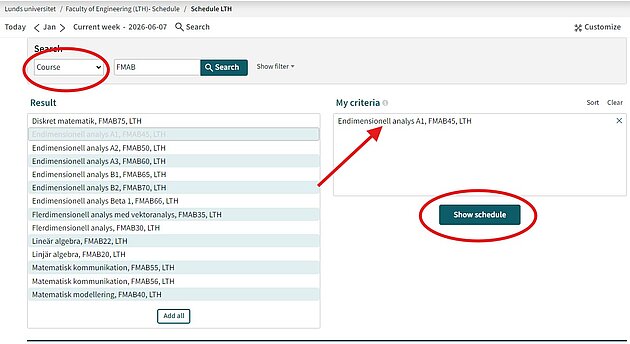
- Open the “Search” menu and choose what you want to look for. To view a course timetable, choose “Course”. To find your subgroup in a course or program, choose “Subgroup”. To check how a room is booked, choose “Room”.
- Enter the name of the course, subgroup, or room you wish to search for in the field next to the dropdown menu. Items matching your search will appear under “Search Results”.
- Click an item to select it. It will then be placed under “My Selections”. You may select a single item or combine several, depending on your preferences.
- When you are satisfied with your selections, click “Show Timetable”.
The timetable corresponding to your search criteria will now be displayed.